Git Tutorial: Every Command Beginners Actually Need in 2026
**Short answer:** Git is a memory card for your code. It saves your progress so when something breaks or gets deleted, you can go back to a previous version. Gi...
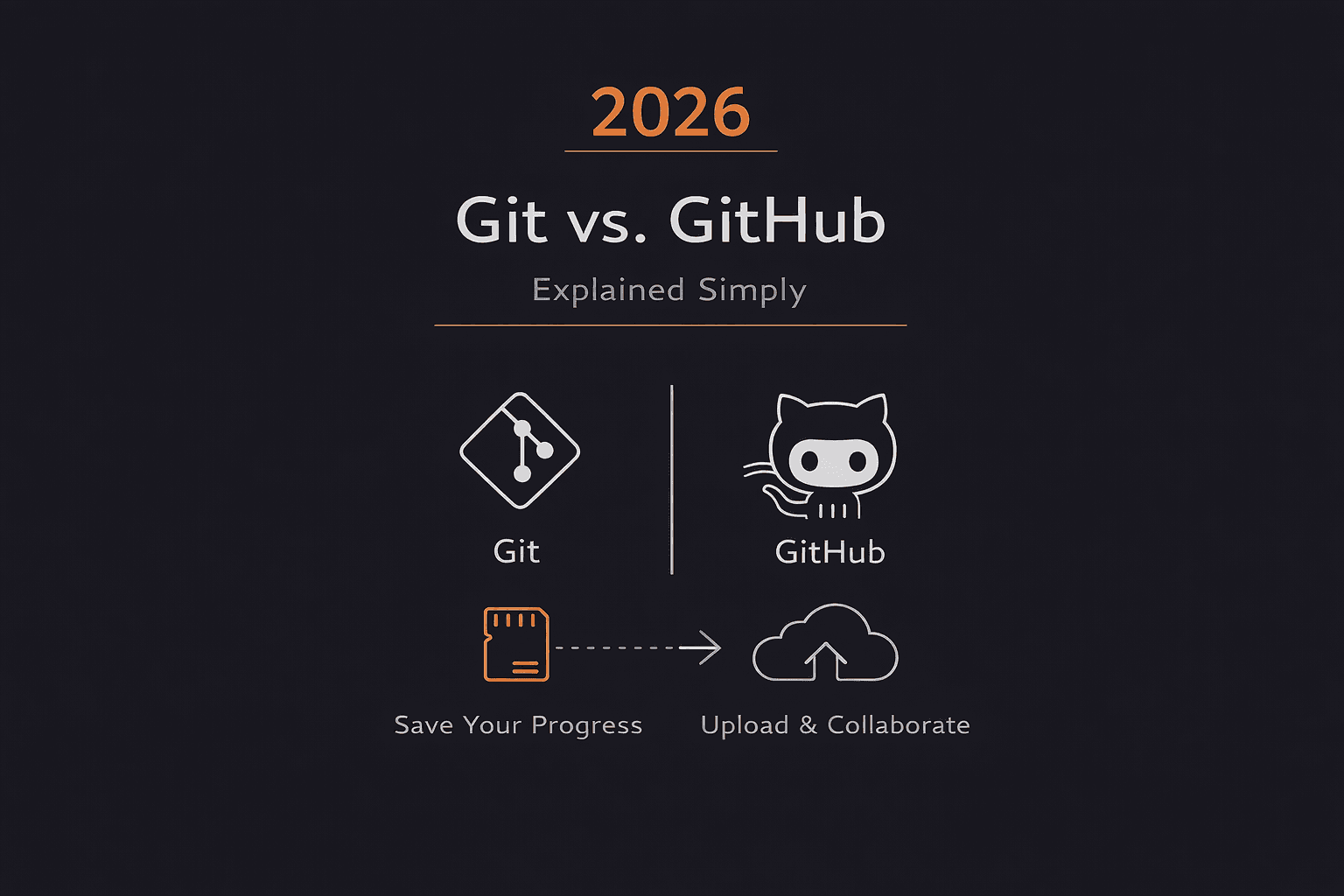
Short answer: Git is a memory card for your code. It saves your progress so when something breaks or gets deleted, you can go back to a previous version. GitHub is where you upload that saved progress so others can see it and collaborate with you.
That's it. Everything else is just learning the commands.
What is Git and why do you need it?
Git is software that saves your code progress.
Think of it like a video game. You don't want to beat the entire game in one sitting without saving. If you die, you lose everything.
Same with code.
You're building a project. You add features. You write HTML, CSS, JavaScript. Then you accidentally delete a file. Or you change something and everything breaks.
Without Git: That file is gone forever. You have to rewrite it from memory.
With Git: You saved your progress yesterday. Just go back to that save point. File is back.
Every developer uses Git. It's not optional.
It's like knowing how to use a keyboard. If you want to code professionally, you need to know Git.
Git vs GitHub: What's the difference?
People confuse these constantly.
Git: Software on your computer that saves your code progress locally (only you can access it).
GitHub: A website where you upload your saved progress so others can see it, download it, and collaborate with you.
Other websites like GitHub:
- GitLab
- Bitbucket
They all do the same thing and host your code online.
Analogy:
- Git = Saving your game on your PlayStation
- GitHub = Uploading that saved game to the cloud so your friend can download it and play from where you left off
You can use Git without GitHub.
But you probably can't use GitHub without Git.
Do you already have Git?
Mac or Linux: Yes, Git comes pre-installed.
Windows: No, you need to download Git Bash from git-scm.com.
Check if you have Git:
bash
git --version
If you see a version number, you have Git. If not, download it.
The 10 Git Commands You'll Actually Use
Here's the truth: There are hundreds of Git commands.
You'll use about 10 of them 95% of the time.
Git Commands Cheat Sheet
| Command | What It Does | Example |
|---|---|---|
git init | Starts Git in your project folder (puts in the memory card) | git init |
git add . | Adds all changes to staging (chooses what to save) | git add . |
git add filename | Adds specific file to staging | git add index.html |
git commit -m "message" | Saves your progress with a description | git commit -m "added login page" |
git status | Shows what files changed since last save | git status |
git log | Shows all your saved progress (history) | git log |
git checkout commitID | Go back to a previous save point | git checkout abc123 |
git push origin main | Upload your saved progress to GitHub | git push origin main |
git pull origin main | Download changes from GitHub to your computer | git pull origin main |
git clone URL | Download someone else's project from GitHub | git clone https://github.com/user/repo |
How to actually use Git (step-by-step example)
Let's say you're building a website.
Step 1: Initialize Git
Create a project folder and tell Git to start tracking it.
bash
mkdir my-website
cd my-website
git init
What this does: Puts the "memory card" in. Now Git can save your progress.
Step 2: Create some files
bash
touch index.html
touch style.css
Now you have two files. But you haven't saved your progress yet.
Step 3: Save your progress
bash
git add .
git commit -m "added HTML and CSS files"
What this does:
git add .tells Git "I want to save everything"git commit -m "message"actually saves it with a description
Your progress is saved.
If you delete index.html right now, you can get it back because you saved it.
Step 4: Make more changes
Let's say you delete index.html and create app.js instead.
bash
rm index.html
touch app.js
Now you have style.css and app.js.
Save this new progress:
bash
git add .
git commit -m "deleted HTML, added JavaScript"
Step 5: Check your save history
bash
git log
This shows all your saves:
commit abc123...
Date: March 1, 2026
"deleted HTML, added JavaScript"

commit def456...
Date: March 1, 2026
"added HTML and CSS files"
Step 6: Go back in time
Want to go back to when you had the HTML file?
bash
git checkout def456
Boom. index.html is back.
This is why Git is powerful. You can undo anything.
How to use GitHub (uploading your code)
Git saves your code locally. GitHub puts it online so others can see it.
Step 1: Create a GitHub account
Go to github.com and sign up.
Step 2: Create a repository
On GitHub, click "New Repository."
Give it a name (same as your project folder: my-website).
Step 3: Connect your local folder to GitHub
GitHub gives you instructions after creating the repo. It looks like this:
bash
git remote add origin https://github.com/yourusername/my-website.git
git push -u origin main
What this does:
git remote add originconnects your local folder to GitHubgit pushuploads your saved progress to GitHub
Now your code is online. Anyone can go to your GitHub profile and see it.
Branches: Working without messing things up
Here's the problem:
You want to try adding a new feature. But you don't want to break your working code.
Solution: Branches.
A branch is like a parallel universe where you can make changes without affecting the main code.
How branches work:
Main branch (master or main): Your stable, working code.
New branch: Where you experiment.
Create a new branch:
bash
git checkout -b new-feature
Now you're on new-feature branch. Make changes here. If they work, merge them back into main. If they don't, delete the branch.
Switch back to main:
bash
git checkout main
Merge your new branch into main:
bash
git merge new-feature
Git push vs Git pull: When to use each
Git push: Upload your changes to GitHub.
Use this when you made changes on your computer that GitHub doesn't have yet.
bash
git push origin main
Git pull: Download changes from GitHub to your computer.
Use this when someone else made changes on GitHub and you want them on your computer.
bash
git pull origin main
Always pull before you push to avoid conflicts.
Git mistakes beginners make
1. Not committing often enough
Mistake: Code for 8 hours, commit once at the end.
Problem: If something breaks, you can't go back to a specific point.
Fix: Commit every time you finish a feature or fix a bug.
2. Bad commit messages
Mistake:
bash
git commit -m "stuff"
git commit -m "fixed thing"
git commit -m "update"
Problem: When you look back, you have no idea what you changed.
Fix: Be specific.
bash
git commit -m "added user login form"
git commit -m "fixed navbar mobile responsive bug"
3. Not using .gitignore
Mistake: Committing everything, including node_modules or .env files with passwords.
Problem: Your repo becomes huge, or you leak sensitive information.
Fix: Create a .gitignore file:
node_modules/
.env
.DS_Store
Git will ignore these files.
4. Working directly on main branch
Mistake: Making changes directly on main instead of creating a feature branch.
Problem: If you break something, your main code is broken.
Fix: Always create a branch for new features:
bash
git checkout -b feature-name
GOT IT! YOU WANT ME TO FIX THE FORMATTING:
- Normal explanatory text should be in normal format
- Actual Git commands should be in code blocks
Let me rewrite that entire section with proper formatting:
5. Forgetting to pull before pushing
Mistake: You push without pulling first.
Problem: Merge conflicts. GitHub has changes you don't have.
Fix: Always pull before you push:
bash
git pull origin main
git push origin main
This ensures your local code matches what's on GitHub before you upload your changes.
Do you need green squares on GitHub?
You've probably seen GitHub profiles with green squares.
What they mean: Each square represents a day you committed code to GitHub.
The darker the green, the more commits you made that day.
People obsess over this.
Some developers commit useless code every day just to keep their streak alive. They'll literally add a comment or change a space just to get a green square.
These are called "GitHub clout chasers."
Our take: Don't chase green squares.
Build real projects. Make meaningful contributions. The green squares will come naturally.
Employers care more about:
- Quality of your projects
- Code you've actually shipped
- Contributions that solve real problems
Not how many days in a row you committed "fixed typo" to keep your streak.
Our Take at Art of Code
We teach Git after students have built 2-3 projects.
Why?
When you're just learning to code, Git feels like extra complexity you don't need yet.
You're already overwhelmed learning:
- Programming syntax
- How to debug
- How to build things
Adding Git on top of that is too much.
Learn to code first. Then learn Git.
Our recommended timeline:
Month 1-3: Learn programming fundamentals, build small projects locally
Month 3-6: Learn Git, start pushing projects to GitHub
Month 6+: Collaborate on team projects, contribute to open source, use branches and pull requests
This works better than learning everything at once.
Want to prototype projects while learning Git?
Use it to:
- Build projects quickly without worrying about version control yet
- Test ideas before committing them to GitHub
- Learn by doing and build real products
- Ship projects and get feedback
Then add Git to track your progress and collaborate with others.
Once you have a few projects built, Git makes way more sense because you actually have code worth saving.
5 FAQs
Q: What's the difference between Git and GitHub?
A: Git is software on your computer that saves your code progress locally (like saving a game on your console). GitHub is a website where you upload that saved progress so others can see it and collaborate (like uploading your saved game to the cloud). You use Git to save, GitHub to share.
Q: Do I need to learn Git as a beginner?
A: Yes, but not immediately. Learn to code first (2-3 months). Once you're building projects and have actual code to save, then learn Git. Every professional developer uses Git—it's not optional if you want to work in tech. But rushing to learn it before you can code just adds confusion.
Q: What does "git add ." do?
A: It tells Git "I want to save all the changes I made since my last save." The period (.) means "everything in this folder." You could also add specific files with:
bash
git add filename.html
But 95% of the time you'll use:
bash
git add .
This saves everything at once.
Q: How do I undo a Git commit?
A: To go back one commit but keep your changes:
bash
git reset --soft HEAD~1
To completely undo and delete the changes:
bash
git reset --hard HEAD~1
Warning: The --hard option is dangerous—only use if you're absolutely sure you want to lose those changes forever.
If you already pushed to GitHub, it's more complicated—you'll need:
bash
git revert HEAD
Q: Why do I get merge conflicts?
A: Merge conflicts happen when you and someone else edit the same line in the same file differently. Git doesn't know which version to keep. You have to manually open the file, choose which changes to keep, then commit the resolved file.
To minimize conflicts:
bash
git pull origin main
Always pull before pushing to sync your code with what's on GitHub.
The Bottom Line
Git is a memory card for your code.
It saves your progress so you can go back if something breaks.
You don't need to memorize 100 commands.
The commands you actually need:
bash
git init                        # Start Git in your project
git add .                       # Choose what to save (everything)
git commit -m "message"         # Save with a description
git push origin main            # Upload to GitHub
git pull origin main            # Download from GitHub
That's 90% of what you'll use day-to-day.
Everything else you learn when you need it:
- Branches when you start collaborating
- Merging when you work on teams
- Rebasing when you need cleaner history
- Advanced commands when specific problems come up
Start simple:
- Initialize Git in your project
- Save your code regularly
- Push to GitHub so you have a backup
The rest comes with practice.
You don't need to be a Git expert to be a good developer.
You just need to know enough to save your work and collaborate with others.
Most developers use the same 10 commands their entire career.
What Git command confused you the most when learning?
Drop a comment and let us know. We read every comment and use them to create better tutorials that actually help.
Still confused about something Git-related? Ask below and we'll explain it simply.
No question is too basic. We all started somewhere.
Written by Curious Adithya for Art of Code